CygNet Message Sniffer Lite Utility
The CygNet Message Sniffer Lite utility (SnifferLite.exe) is a diagnostic tool that captures and evaluates all CygNet message traffic occurring on a CygNet client or host. Sniffer Lite is designed to help the CygNet administrator understand what messaging is occurring between CygNet clients and services in order to diagnose problems and improve performance.
The diagnostic sequence of the CygNet Message Sniffer Lite utility is:
- Starts the capture of CygNet messaging traffic.
- Reproduces the suspected messaging problems.
- Stops the capture of messages.
- Allows the user to evaluate the captured messages to support or dispute assumptions.
CygNet uses RUDP for packet transmission. For more information, see CygNet Data Packets and RUDP.
Note: You should only capture messages continuously with Sniffer Lite for a brief period of time (a few minutes) since it stores all of the captured messages in memory and could cause errors if messages are captured for a longer period of time.
The CygNet Message Sniffer Lite utility is stored in the CygNet\Utilities (SnifferLite.exe) directory on the host server. To start the utility, use Windows Explorer to browse to the directory and double-click the program icon.
|
CygNet Message Sniffer Lite Utility |
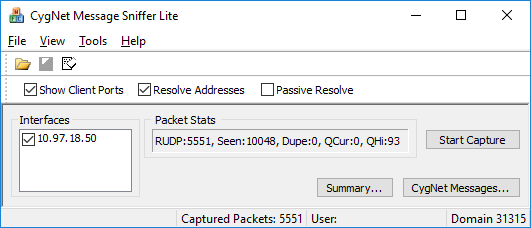
For more information, see the following subsections:
- CygNet Message Sniffer Lite Utility Properties
- To Capture Messages Using Sniffer Lite
- View the CygNet Message Summary
- View the CygNet Message Viewer
- Common Messages Captured Using Sniffer Lite
CygNet Message Sniffer Lite Utility Properties
The following table lists and describes CygNet Message Sniffer Lite Utility properties.
| Property or Button | Description |
|---|---|
|
Show Client Ports |
Include the client ports where appropriate in the client column. |
|
Resolve Addresses |
Sets attributes on the packet capturing object within the utility and sends out packets to gather further information. |
|
Passive Resolve |
Sets attributes on the packet capturing object within the utility. |
|
Interfaces |
Lists the available network interfaces. |
|
Packet Stats |
Displays the packet statistics of the captured messages. |
|
Start Capture/ Stop Capture |
Starts the capture of CygNet messages, opens the Packet Stats dialog box, and changes the button to Stop Capture, which when clicked ends the capture process. |
|
Summary |
Opens the CygNet Message Summary dialog box. |
|
CygNet Messages |
Opens the CygNet Message Viewer, which displays the list of captured CygNet messages. |
To Capture Messages Using Sniffer Lite
- Go to the CygNet\Utilities directory on the host server and open the CygNet Message Sniffer Lite (SnifferLite.exe) utility.
- Select the desired parameters and interfaces. If you have multiple network adapters on your machine, ensure each one is checked in the Interfaces list box so that all messages are captured.
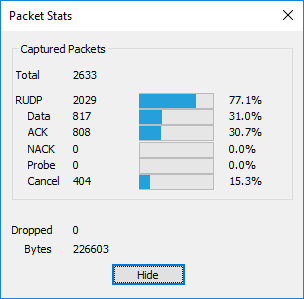
- Click Start Capture. The Packet Stats dialog box opens and the changing values confirm messages are successfully being captured. As the capture proceeds, the values increment to show the Total number of packets captured, the percentage of RUDP and each type of packet, the number of Dropped packets, and the number of Bytes captured.
- If desired, click Hide to hide the Packet Stats dialog box.
- If analyzing a CygNet client (for example, CygNet Explorer), open the client that is demonstrating the slow performance time and wait for it to load fully.
- Click Stop Capture to end the capture process.
- To view the list of CygNet messages captured, click CygNet Messages. The CygNet Message Viewer dialog box displays the captured messages. Sorting on the column headers facilitates viewing according to categories.
- To isolate specific messages or message types, right-click a message and choose an option from the drop-down menu. Another CygNet Message Viewer dialog box opens to display only the selected options.
- Click the 1st Pkt No. column header to view the messages in the order sent.
- The Delta (ms) column displays the amount of time it took to request and receive data for each message.
|
CygNet Message Sniffer Lite, Packet Stats |
Note: If User Account Control (UAC) is enabled, capturing CygNet messages requires administrator-level permission. See CygNet and User Account Control for more information.
- To view a summary of all messages, click Summary. The CygNet Message Summary dialog box opens.
View the CygNet Message Summary
|
Click the thumbnail to see |
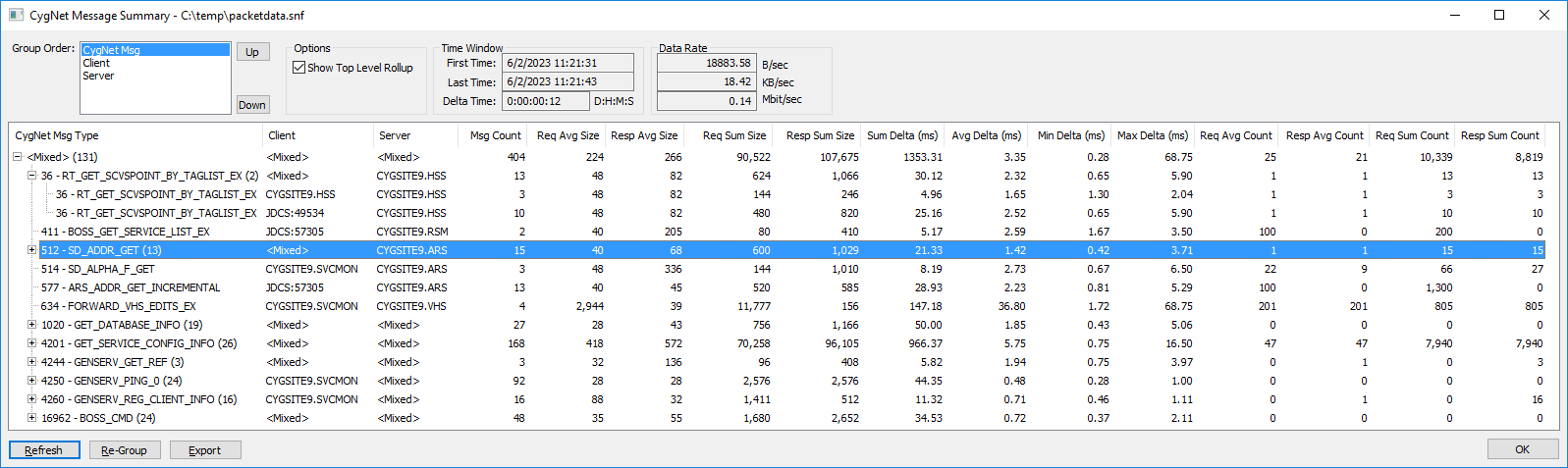
The CygNet Message Summary dialog box provides a high-level view of the CygNet messages captured using the CygNet Message Sniffer Lite utility. By moving the groups up or down in the Group Order field and then clicking Refresh, a user can view the messages according to client, server, or message. The first three columns of the display change accordingly.
A user can expand specific items in the list for more information. If Show Top Level Rollup is checked, clicking Re-Group will roll up the expanded items. The Time Window displays the start time, end time, and duration of the capture. The Data Rate displays the bits per second, kilobytes per second, and megabits per second.
The Export button exports the data in the summary to a CSV file. For more information, see Common Message Types Captured Using Sniffer Lite.
CygNet Message Summary Columns
The following table describes the columns on the CygNet Message Summary dialog box.
| Column | Description |
|---|---|
|
CygNet Msg Type |
The type of CygNet message captured by Sniffer Lite. For more information, see Common Message Types Captured Using Sniffer Lite.
|
|
Server |
The name of the server (Site.Service) sending the message. If more than one Server, the report shows <Mixed>. |
|
Client |
The name of the client (Site.Service or other client) receiving the message. If more than one client, the report shows <Mixed>. |
|
Msg Count |
The total number of messages captured. |
|
Req Avg Size, Resp Avg Size |
The average size of the request and response messages. |
|
Req Sum Size, Resp Sum Size |
The total size of the request and response messages. |
|
Sum Delta (ms), Avg Delta (ms), Min Delta (ms), Max Delta (ms) |
The total, average, minimum, and maximum deltas of the messages in milliseconds. The delta is the length of time between the time start and end time of each message. |
|
Req Avg Count, Resp Avg Count |
The average number of request and response messages. |
|
Req Sum Count, Resp Sum Count |
The total number of request and response messages. |
 to expand the message
 to collapse the message
View the CygNet Message Viewer
|
Click the thumbnail to see |
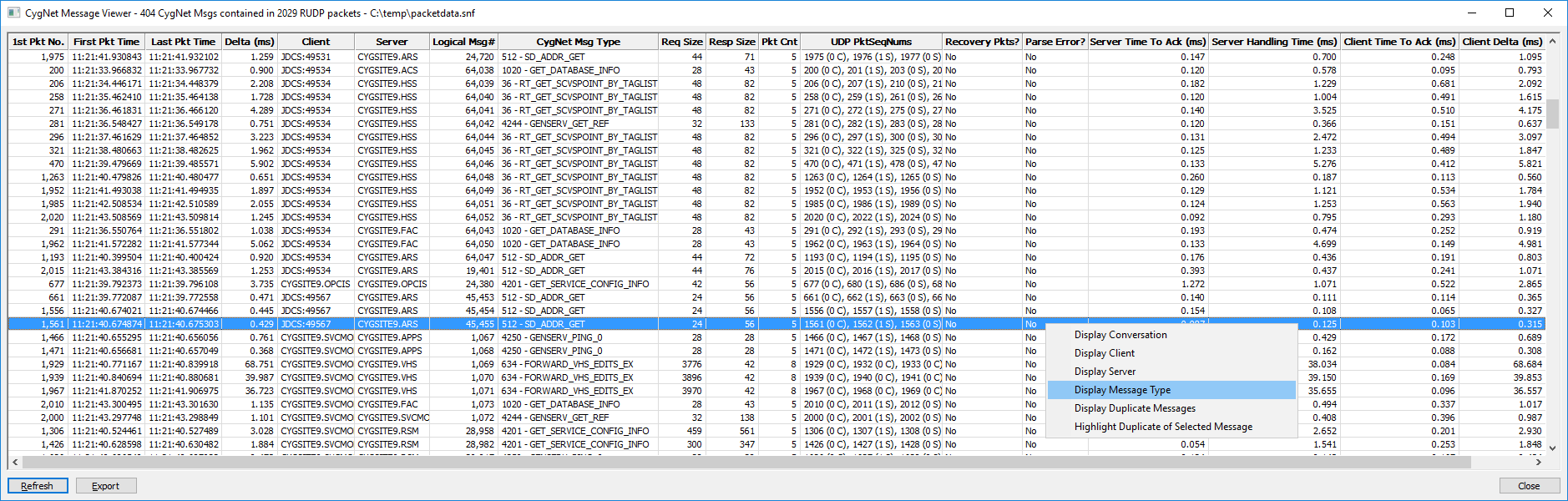
The CygNet Message Viewer dialog box displays the list of captured CygNet messages. The title displays the number of messages contained in the RUDP packets. Sorting on the column headers facilitates viewing according to categories. For example, clicking the 1st Pkt No. column header sorts the messages in the order sent. Clicking the Server column header sorts the list by the CygNet service name to which the message was sent. Selecting Refresh returns the list to its original order.
Message Viewer Context Menu
Right-clicking on a message displays a drop-down menu with six options available for the user to isolate messages. Each option opens another CygNet Message Viewer dialog box that displays more information about each message:
- Display Conversation — displays the full conversation between the client and the server
- Display Client — displays messages by client
- Display Server — displays messages by server
- Display Message Type — displays messages by CygNet message type
- Display Duplicate Message — displays all messages that are duplicates. A duplicate message is one where the request and response data are the same. There are many messages where this is might be okay, (for example, GET_DATABASE_INFO, SD_ADDR_GET), because they are used as status checking, but lots of duplicate messages may be indicative of a case where messages are being sent unnecessarily. Duplicate detection includes client IP address, but not the port, so that captures on service machines don't identify two different client machines making identical requests.
- Highlight Duplicate of Selected Message — selects and highlights all messages in the current view that are duplicates of the highlighted message
The Export button exports the data from the CygNet Message Viewer to a CSV file.
CygNet Message Viewer Columns
The following table describes the columns on the CygNet Message Viewer dialog box.
| Column | Description |
|---|---|
| 1st Pkt No. |
The number of the first packet. |
|
First Pkt Time |
The timestamp of the first packet. |
|
Last Pkt Time |
The timestamp of the last packet. |
|
The amount of time it took to request and receive data for each message in milliseconds. Indicates how long the client was waiting for data. See Client Delta (ms) below. |
|
|
Client |
The name of the client (Site.Service or other client) receiving the message. |
|
Server |
The name of the server (Site.Service) sending the message. |
|
Logical Msg# |
The number of logical messages. |
|
CygNet Msg Type |
The type of CygNet message captured by Sniffer Lite. For more information, see Common Message Types Captured Using Sniffer Lite. |
|
Req Size, Resp Size |
The size of the request and response messages. |
|
Pkt Cnt |
The number of packets in the message. |
|
UDP PktSeqNums |
The UDP packet sequence numbers in the message. |
|
Recovery Pkts? |
Indicates whether the message contained any recovery packets. |
|
Parse Error? |
Indicates whether the message contained any parse errors. |
|
Server Time To Ack (ms) |
Indicates how long it took for the server to acknowledge the receipt of data from the client (in milliseconds). Server Time To Ack and Client Time To Ack are closely related.
|
|
Server Handling Time (ms) |
Indicates how long it took for the server to actually meaningfully respond to the message (in milliseconds). For example, for a typical DBS message, how long did it take to read data from the disk cache or disk. |
|
Client Time To Ack (ms) |
Indicates how long it took for the client to acknowledge the receipt of data from the server (in milliseconds). See the note above about Client Time To Ack and Server Time To Ack. |
|
Indicates how long the client was actually waiting for data (in milliseconds). Client Delta (ms) only makes sense if the capture was made on the client machine. On a network with low latency, the times for Client Delta (ms) and Delta (ms) will be fairly close, but on a network with high latency, Client Delta (ms) may be roughly half of the time of Delta (ms), unless Server Handling Time (ms) dwarfs Server Time To Ack (ms). If the capture is made on an independent third machine, then all of the deltas are trickier to assign exact meaning, absent further context. If the third machine is close to either the server or client, then you can apply the above guidelines for dealing with Server Time To Ack, Server Handling Time, and Client Time To Ack, for whichever machine it is close to, but if the third machine is halfway between the client and server, and the latency is high between all three machines, then the numbers are more difficult to describe. |
Common Message Types Captured Using Sniffer Lite
The following table lists common types of messages that are captured when using the CygNet Message Sniffer Lite utility. This list is not inclusive, as messages may vary and the actual messages may contain various parameters specific to different clients and users.
| Captured Message | Description |
|---|---|
|
ADD_EVENT |
Adds an entry into an ELS. |
|
CAS_GET |
Updates client alarms. |
|
GENSERV |
Registers information to or gathers information from services. |
|
GET_DATABASE_INFO |
Requests basic information about a database (for example, sequence number). |
|
GET_INCREMENTAL |
Requests incremental information about a database. Can also gather a list of keys and updates. |
|
GET_TABLE_ROW |
Gathers table row information from a database. |
|
GET_TABLE_ROW_BY_INDEX |
Uses an index to gather table row information. |
|
GET_VHS_INCREMENTAL_CHANGES |
Gathers list of incremental changes to a VHS. |
|
LIST_HISTORY_VALUES_EX |
Reads history values from a point in chronological order based on a given timestamp. Can be related to a trend in a CygNet Studio screen. |
|
READ_DATA |
Reads data from a service. Can appear due to missing index. |
|
RT_GET |
Compiles entire lists of real-time service components (for example, points and facilities). |
|
RT_GET_TAGLIST |
Returns a list of real-time tags from a service. |
|
SD_ADDR_GET |
Used by an ARS asking for address/location of another service. |
|
RT_SET_CVS_POINT |
Sets a real-time value. |
Menu and Toolbar Options
The following tables list and define command options accessed using the CygNet Message Sniffer Lite utility menu and toolbar. See the following sections below for more information:
File Menu Options
The following table lists and describes File menu options.
| Option | Description | Toolbar Icon | Shortcut |
|---|---|---|---|
|
Open |
Select a previously captured message file. Browse to look for an .snf file. |
|
Ctrl+O |
|
Save |
Select to save the captured packet data as an .snf file. The default file name is packetdata.snf, but you can rename it if necessary. The title bar of the CygNet Message Summary and CygNet Message Summary dialog boxes will indicate if the packet data is Unsaved. Once saved, the name of the saved packet data file will be displayed in the title of the various Sniffer Lite dialog boxes if reopened. |
|
Ctrl+S |
|
Import PCAP |
Not implemented. |
Ctrl+I |
|
|
Export PCAP |
Not implemented. |
||
|
Clear |
Select to clear packets from the capture buffer and clear statistics. |
|
Ctrl+X |
|
Start Capture |
Starts the message capture process. See To Capture Messages above. |
||
|
Stop Capture |
Stops the message capture process. See To Capture Messages above. |
||
|
<Recent File> |
A numbered list of recent files. |
||
|
Exit |
Select to quit the CygNet Message Sniffer Lite utility. |


View Menu Options
The following table lists and describes View menu options.
| Option | Description |
|---|---|
|
Toolbar |
Click to hide or show the toolbar. |
|
Display Options |
Click to hide or show the check boxes under the toolbar. |
|
Packet Stats |
Select to show the Packet Stats dialog box, if it has been hidden. |
Tools Menu Options
The following table lists and describes Tools menu options.
| Option | Description |
|---|---|
|
Capture Options |
Select to configure the packet capture options:
|
|
PCAP Mass Convert |
Not implemented. |
Help Menu Options
The following table lists and describes Help menu options.
| Option | Description |
|---|---|
|
About CygNet Sniffer Lite |
Displays an About CygNet Packet Sniffer Lite Utility dialog box to view application information. Available information includes the following:
In addition to information about the application, the About box includes the following buttons:
|


